Step by step
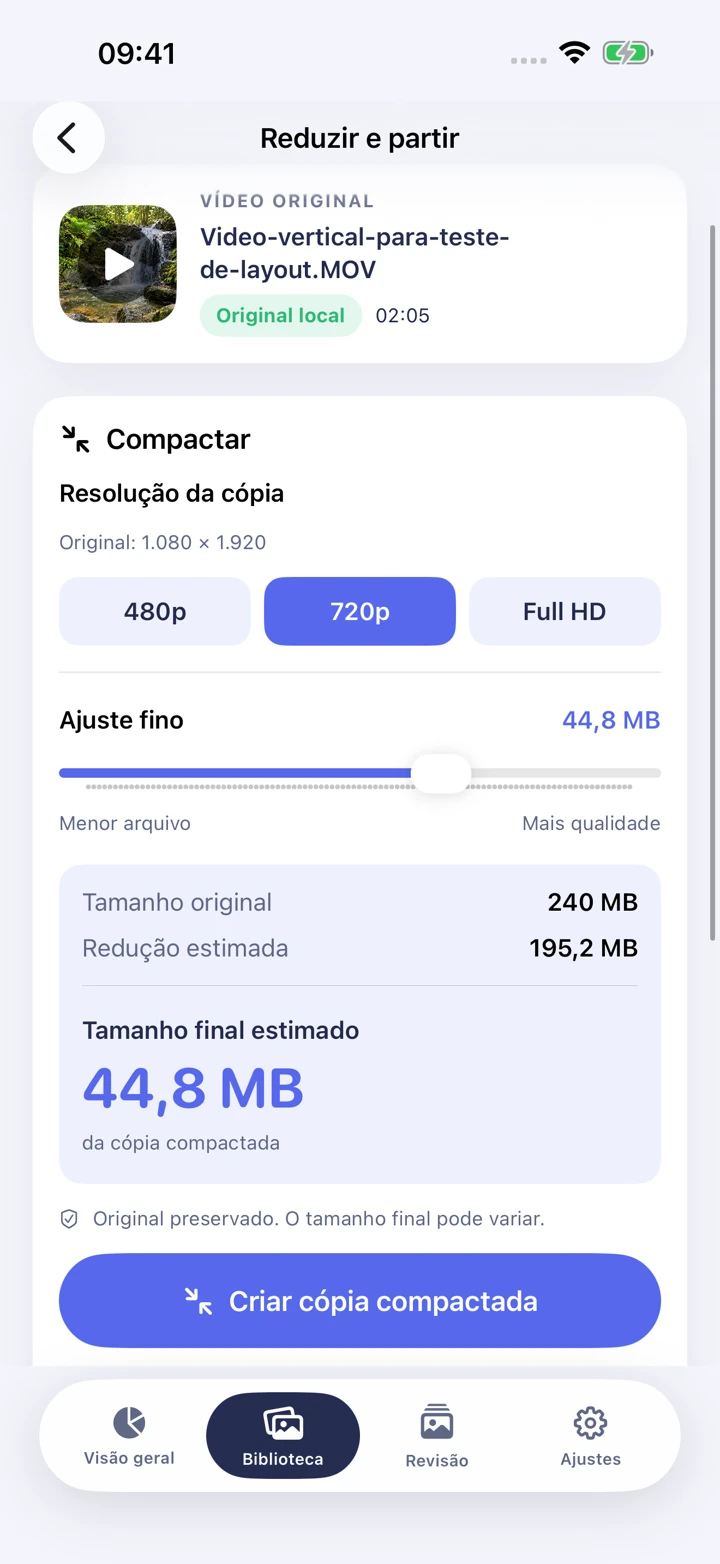
Open a video in Library and tap Compress. The original must be available on the device.
Choose a resolution supported by the video and adjust reduction. The displayed final size is an estimate; the actual result may vary.
Create the copy and use Check copy to review picture and sound. The original stays separate.
Find new copies in Library → My videos. Created videos appear as recent in Photos by default; change this in Settings to keep the original date. Check the saved copy before deciding whether to delete the original.
Assess potential savings
In Overview, open the video savings suggestions. The app uses local videos to estimate smaller copies; an iCloud original must be available on the device before processing.
Open a suggestion and choose Assess clips. The app tests three excerpts to refine the estimate. This assessment is available without Pro.
Open Compare preview to switch between Original and Test copy at the same point. Use full screen, rotate the device or zoom in to check details and sound. The preview does not inspect every frame of the full video.
Compress a batch
Open Batch compression in Library or in an authorized folder. Select available local videos, or select all shown.
Choose shared resolution and quality settings. If you set a maximum size, treat it as a target. Check the estimated output and review the queue before starting.
The app processes one video at a time. You can pause after the current video, check saved results and continue the queue.
When you leave the app, the queue requests a pause after the current video. If interrupted, reopen the queue and inspect saved copies before retrying unfinished items. An incomplete video may need to restart.
If storage is almost full
Compression needs room for the copy and temporary files. The estimated reduction is not the amount of free space needed to start.
Review large files you no longer need, then try again. Creating a smaller copy alone does not free space: check the copy and decide what to delete.
Reference screenshots in Portuguese with demo data. The interface may vary by app version and device.
All guides